
MAGAZINE
How to create your website with Kreors
Hey there, welcome to Kreors!
We’re super excited to help you bring your ideas to life online without any coding skills. Whether you’re a student, a young entrepreneur, or someone with a creative vision, Kreors makes building your website fun and easy.
Step 1: Sign up and get started
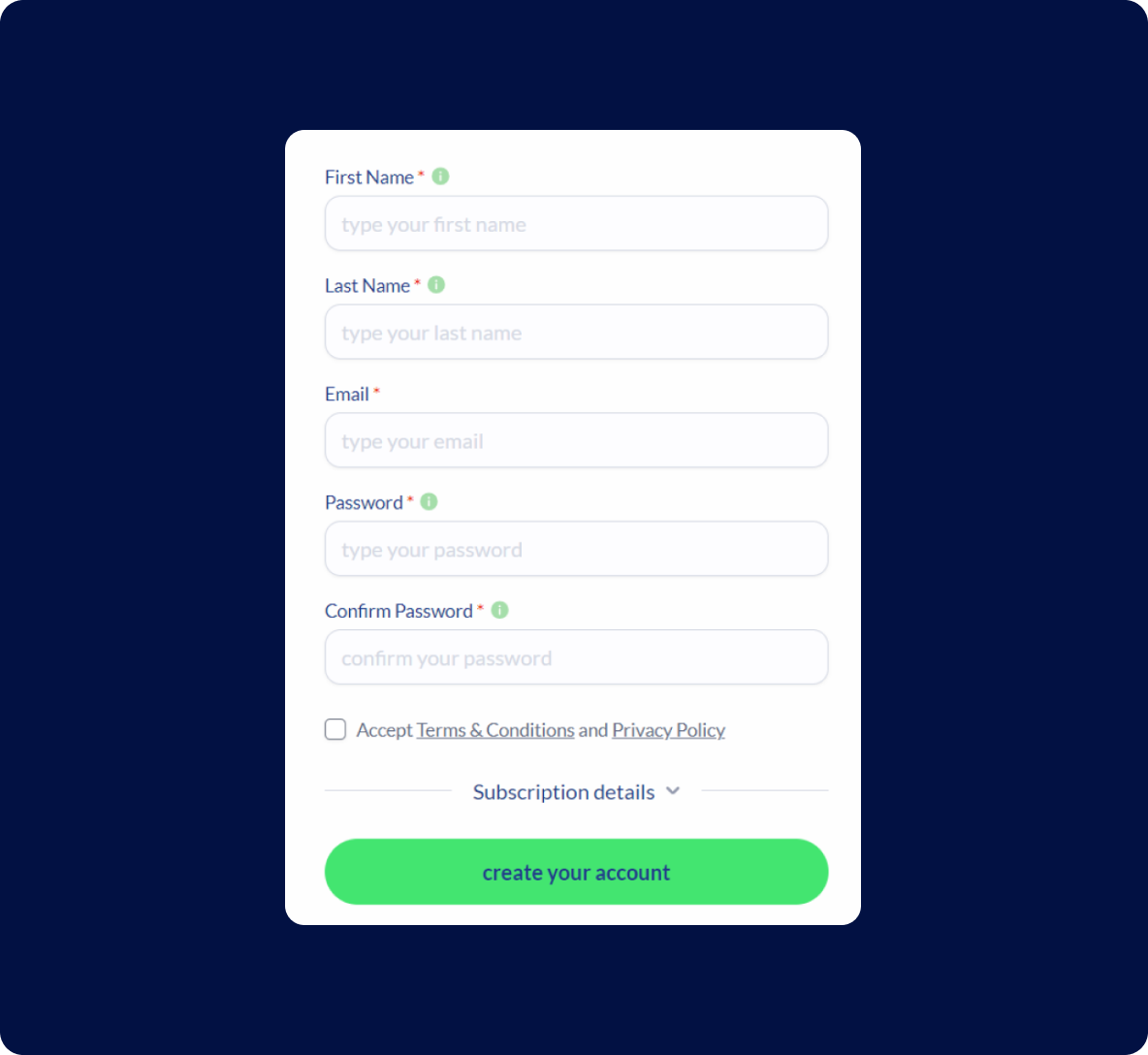
If you don’t have an account yet, go to Kreors.com and hit the "Build" button. Fill out the form to create your account. You can either pay upfront or choose to pay when you publish your project. No matter which option you pick, your account will be set up, and you can start creating your website.
Step 2: Set the main font
First things first, choose the main font for your site. This step helps set the vibe for your website.
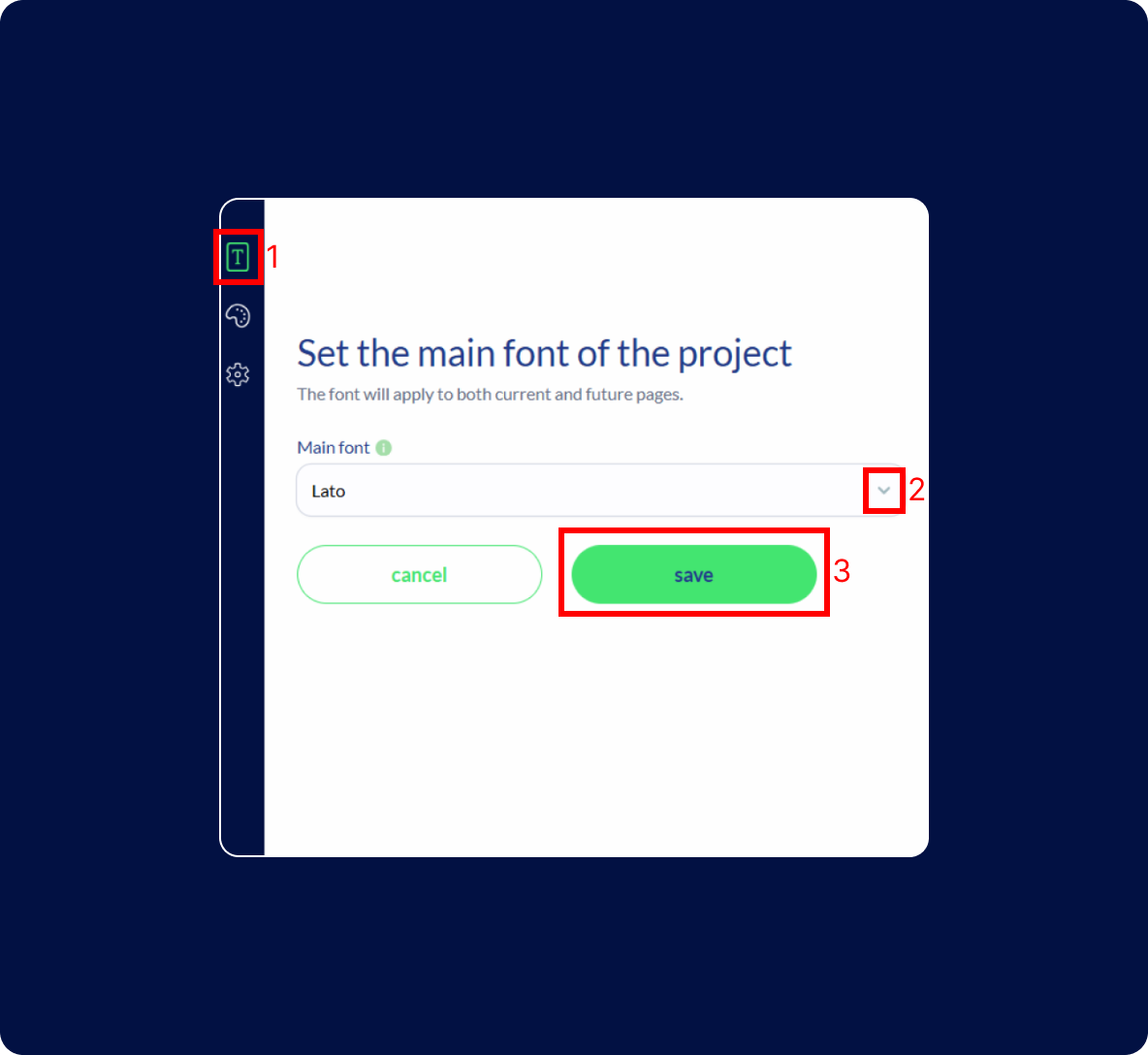
To do this, go to the left side of the page and click the first icon with a "T".
From the list of fonts, pick the one you like. You can see a preview of how your selected font will look.
Step 3: Choose your colors
Next, pick the colors for your project. On the left, you’ll see the color options, and on the right, you’ll get a preview of how these colors look in different sections of your site.
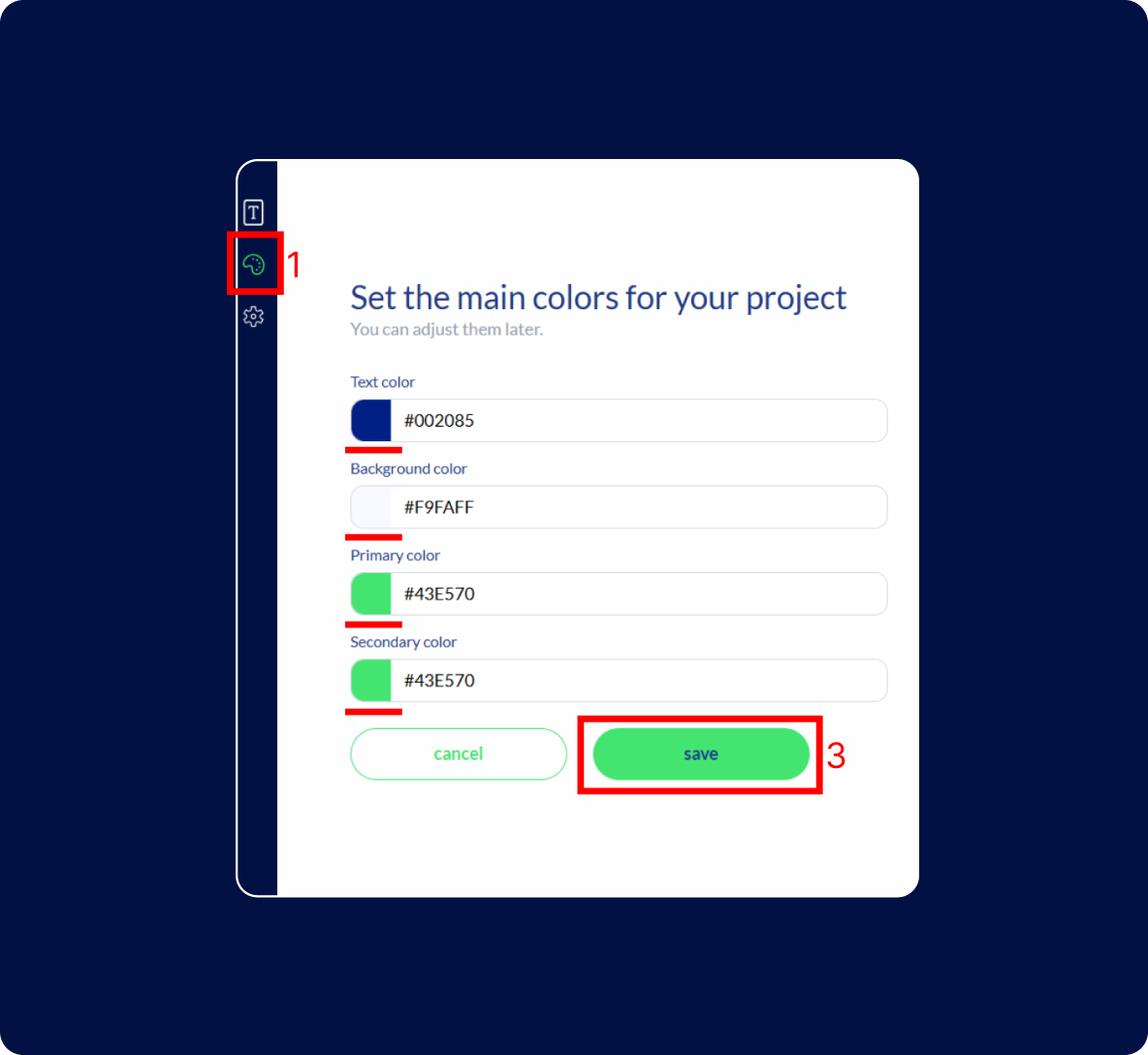
Text color
This is the color of your text.
Background color
This is the color of your website's background.
Primary color
This color is used for key elements like buttons and links.
Secondary color
This color complements the primary color and is used for accents.
Step 4: Set the name and description
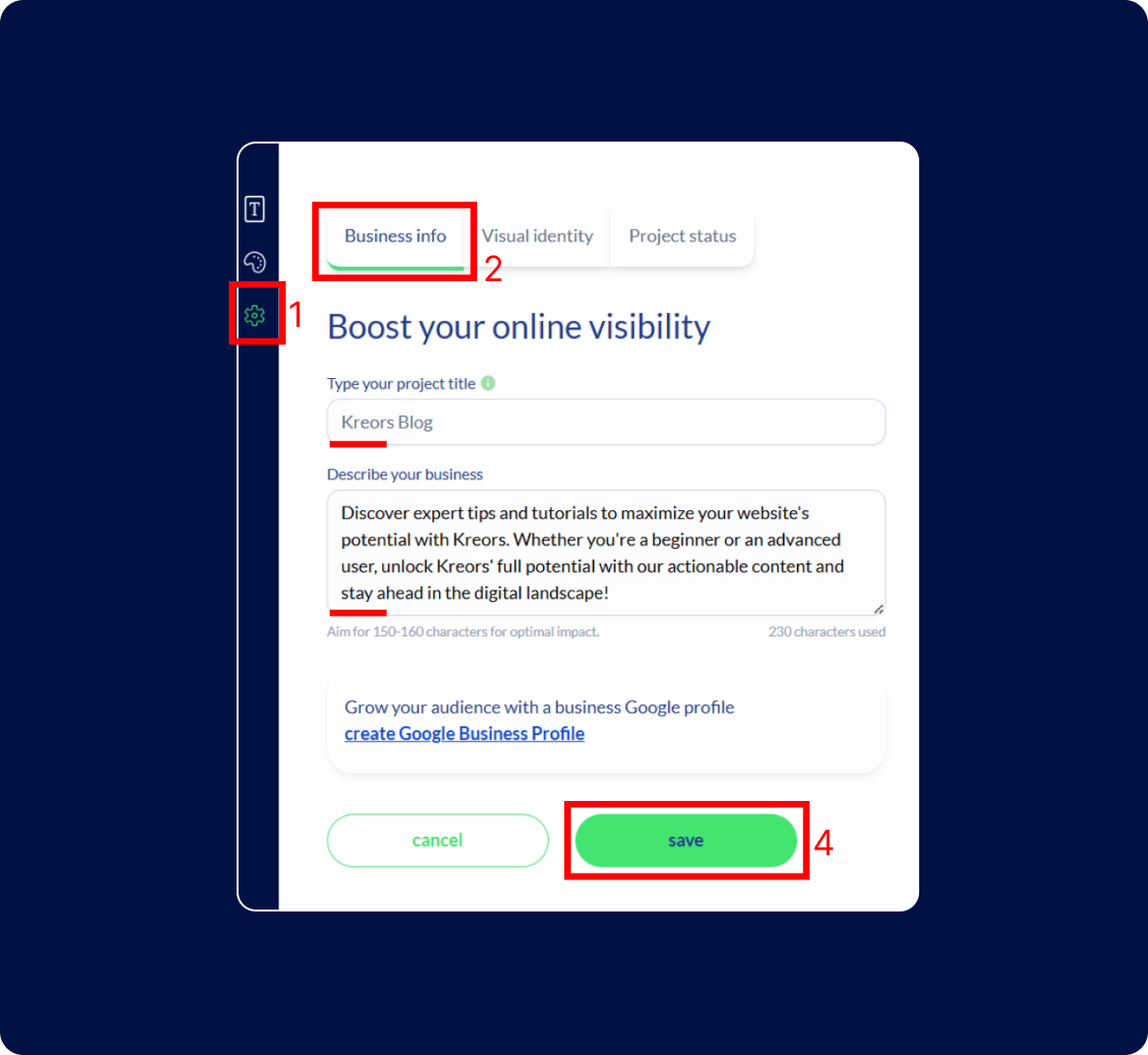
Add your website’s name and a catchy description. You’ll see a preview as you type, so you can tweak it until it’s perfect.
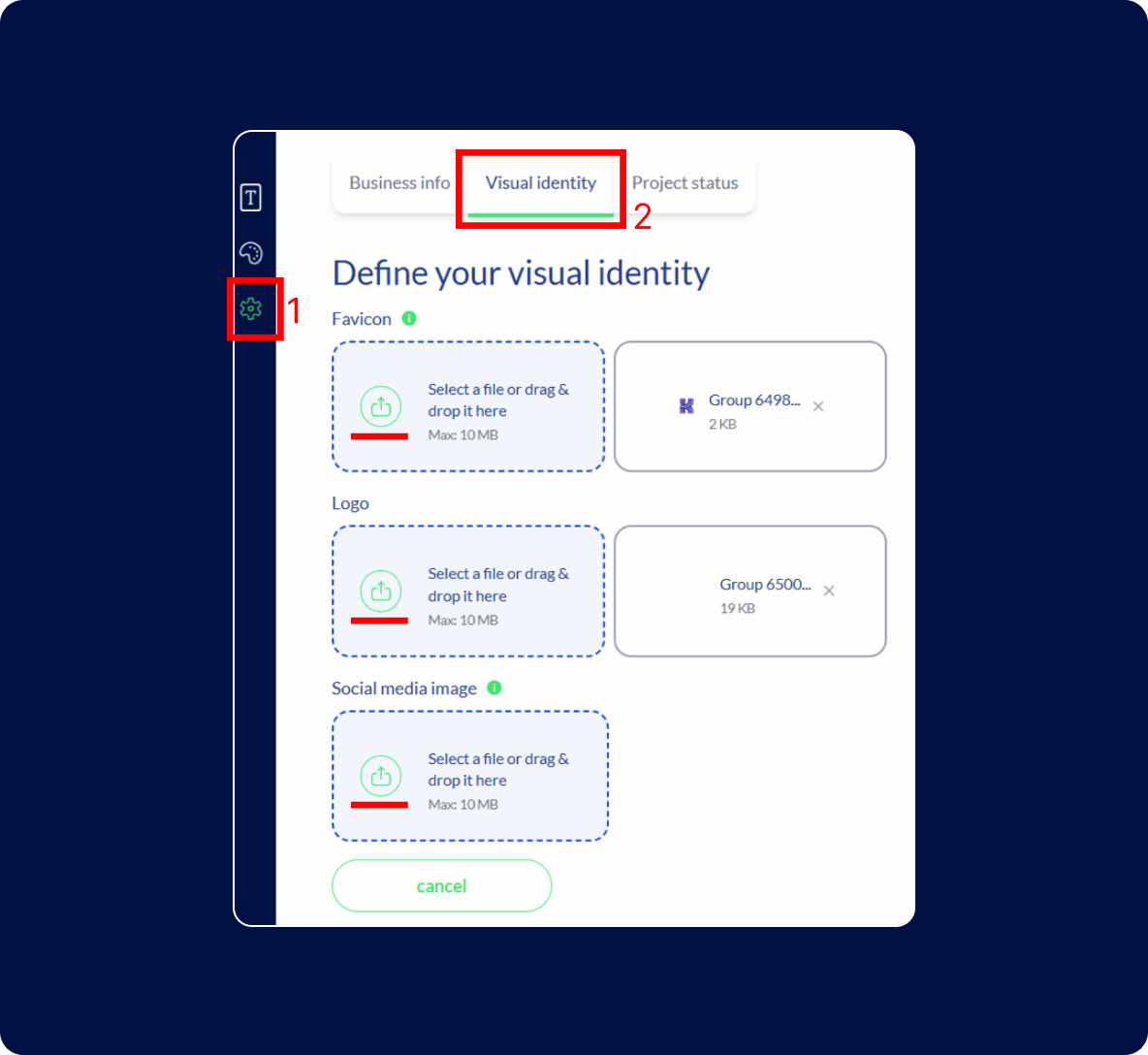
Step 5: Customize your brand’s visual identity
Upload your images to make your brand stand out. On the left, add your images, and on the right, see how they look from an SEO perspective.
Step 6: Add sections
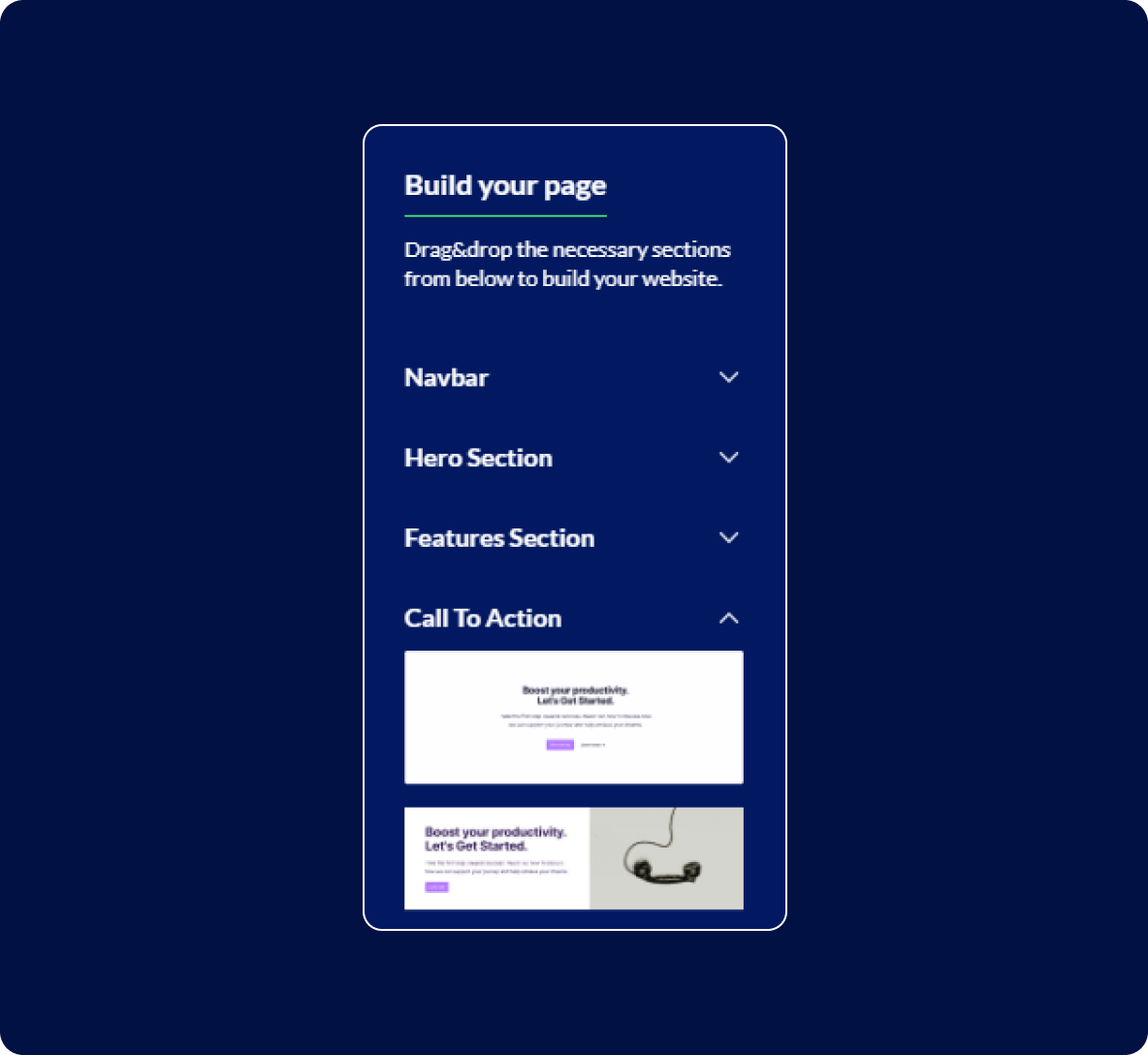
Kreors gives you tons of sections ready to be customized. Drag and drop them onto the canvas and make each one your own. Add as many pages as you need to build trust and showcase your brand.
Step 7: Customize sections
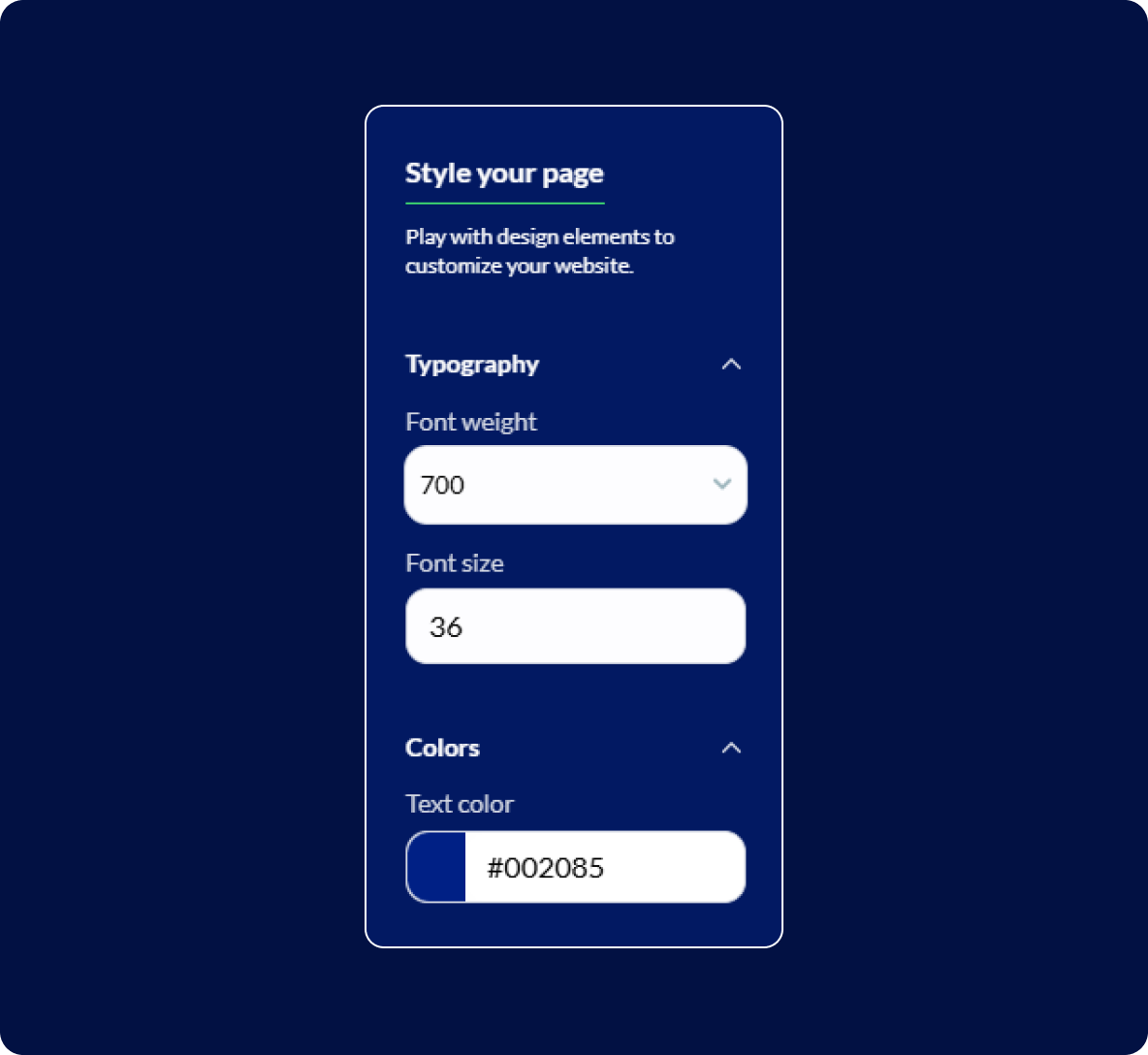
Customize each section. Change the colors and text sizes or add links on the right under 'Style your page'.
Step 8: Add SEO details for the page
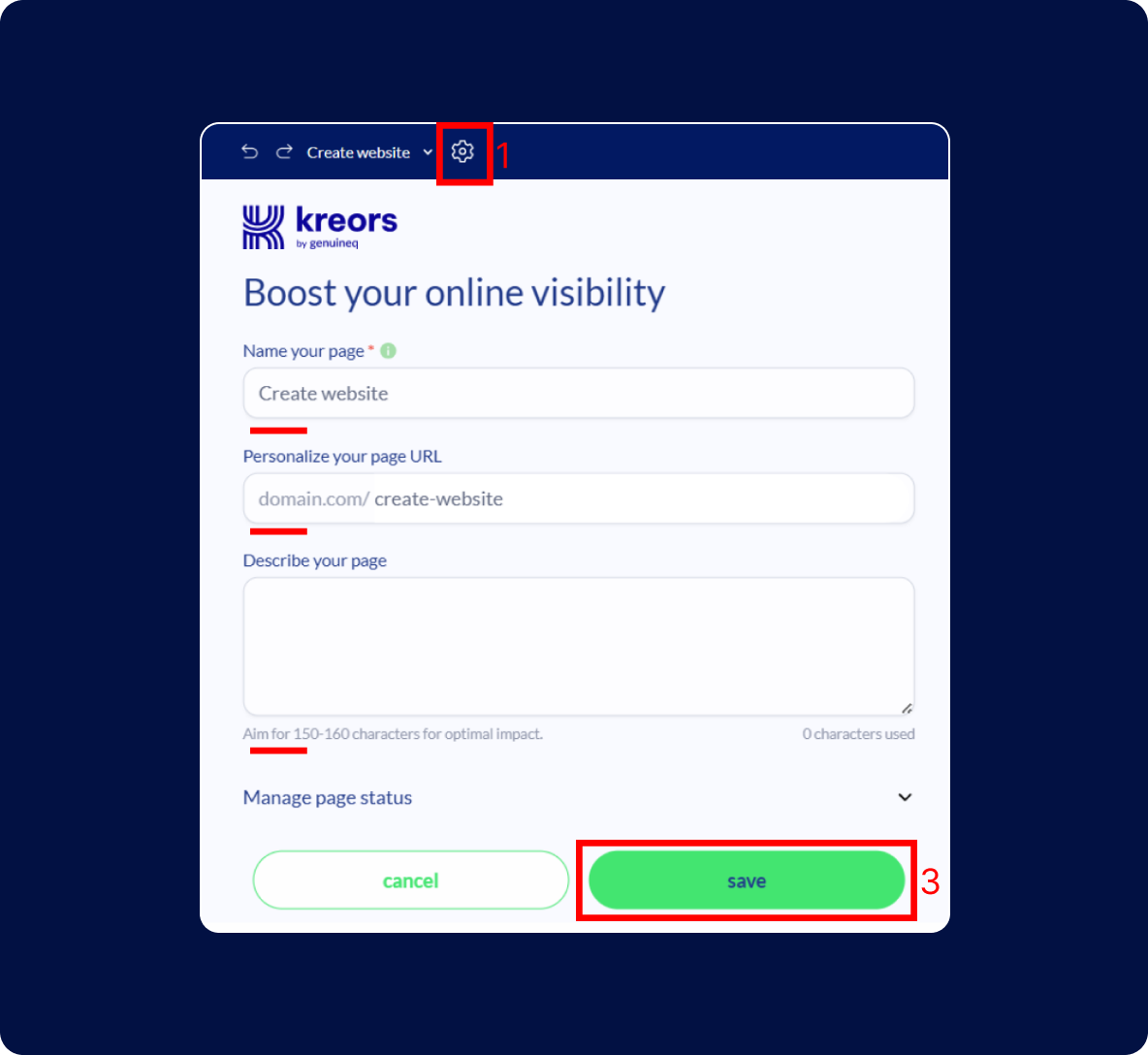
Add SEO details for the page. Set the page name, URL, and description by clicking the 'Settings' icon next to the page name.
Step 9: Preview your website
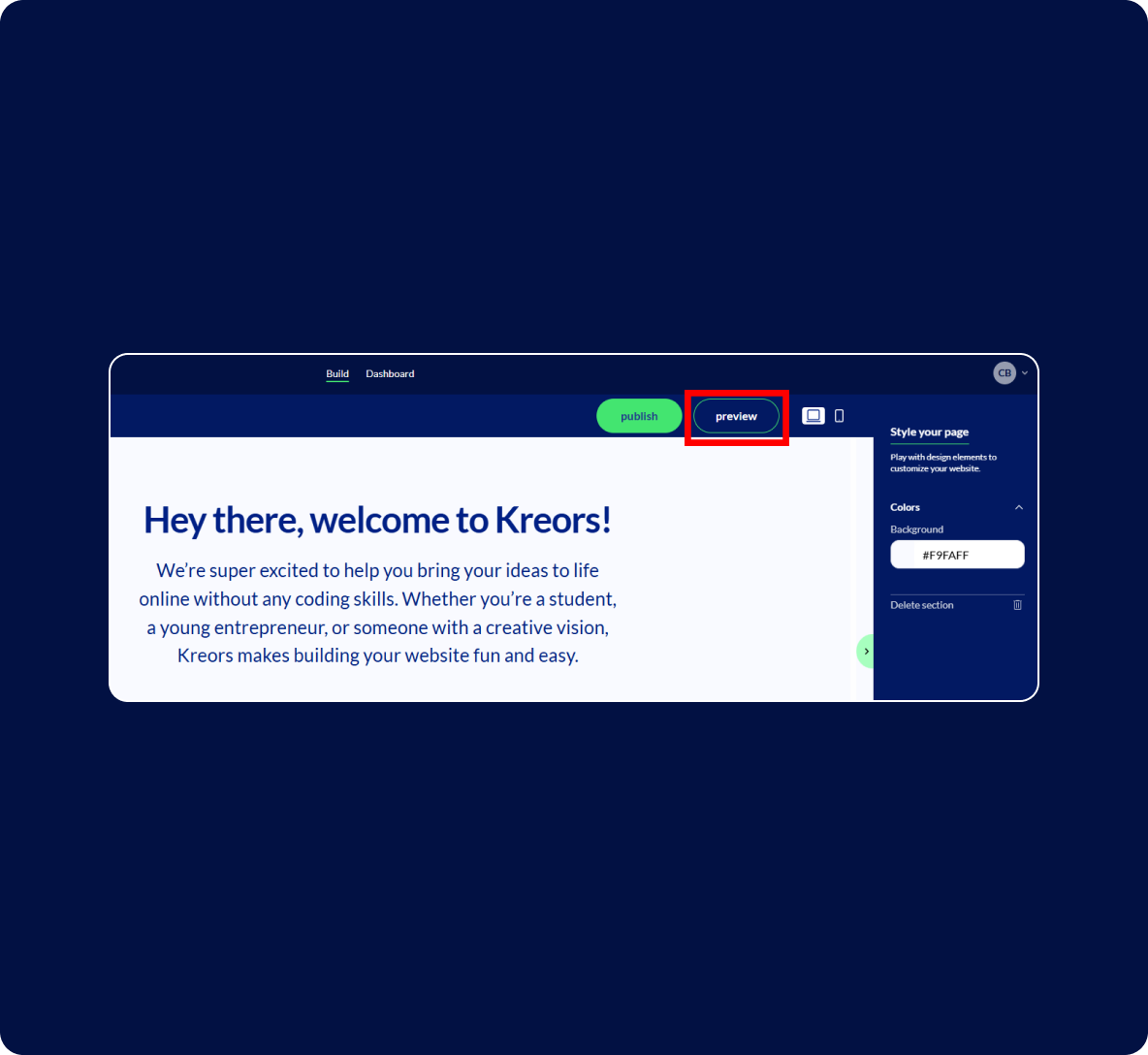
After finishing your pages, preview your site to see how it looks live. Check out both the laptop and phone versions to make sure it’s fully responsive.
Creating a website with Kreors is super easy and a lot of fun.
With our user-friendly tools and customizable options, you can bring your vision to life.
TAKE THE FIRST STEP
Express yourself and create something meaningful and authentic.
Kreors. All rights reserved.